Docker with AWS EC2
✅ Install Docker
- reference AWS
- https://docs.aws.amazon.com/serverless-application-model/latest/developerguide/install-docker.html
1
2
3
4
5
6
7
8
9
10
11
12
13
14
15
16
17
# update
sudo yum update -y

# install
sudo yum install -y docker


# start Docker
sudo service docker start

# add user
sudo usermod -a -G docker ec2-user

# close connection
# create new connection
# now try running docker commands
docker ps
- install docker compose
1
2
3
4
5
6
7
8
9
mkdir -p ~/.docker/cli-plugins

curl -SL https://github.com/docker/compose/releases/download/v2.25.0/docker-compose-linux-x86_64 -o ~/.docker/cli-plugins/docker-compose

# execute
chmod +x ~/.docker/cli-plugins/docker-compose

# verify
docker compose version
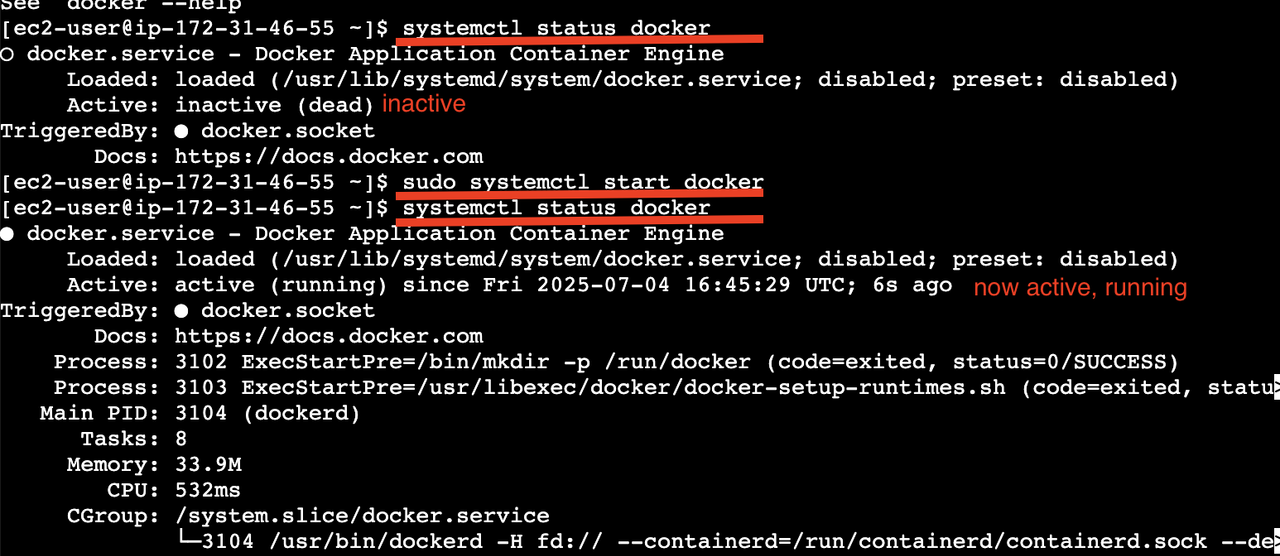
- check if docker is running
1
sudo systemctl status docker
✅ AWS ECR
- ECR: Elastic Container Registry
AWS ECR에 image를 저장해두었다가 다운받을 수 있음. 일종의 저장소👍🏻
AWS내에서 한번에 관리할 수 있고, 다른 AWS resource와 연동이 편하다- 👎🏻 기존에는 EC2에
JDK,MySQL,Redis…등 필요한 프로그램을 다 설치하고 프로젝트를push, pull해서 사용해야 했음 - 👍🏻 Docker만 깔려있으면 어디에서든 내가 원하는 프로젝트 실행 가능
- 내 프로젝트에서 필요한 코드에 대해서만
Docker Image로build하고 - EC2에서는 그
이미지만 다운받아서 실행 - 프로젝트 코드 전체를 EC2로 옮겨 실행 ❌
- 훨씬 simple!
- 간단하게 프로젝트 deploy, run가능
✅ AWS IAM 설정하기
- IAM에
AmazonEC2ContainerRegistryFullAccess추가하기 AWSCodeDeployFullAccess추가
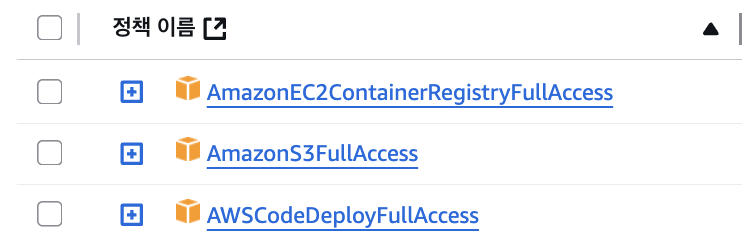
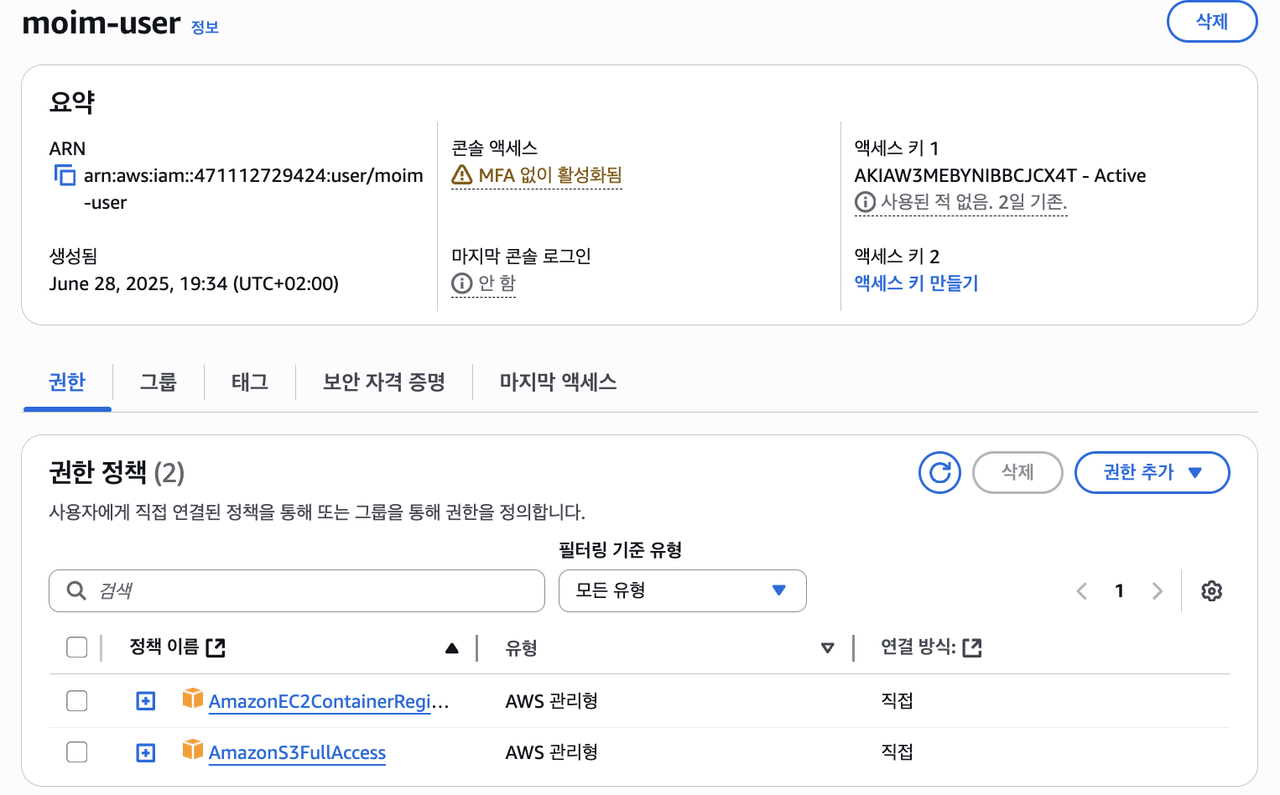
access key, secret key 파일로 받아서 저장해 둘 것
이제
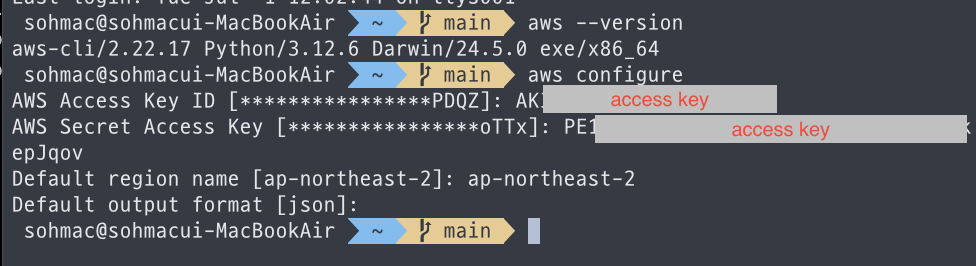
AWS CLI를 설정하고 권한을 주어야 한다
1
2
3
4
5
# AWS CLI 설치되어 있는지 확인
aws --version

# configure access key
aws configure
- 1️⃣ local bash에 권한 주기
- 2️⃣ EC2접속해서 명령 권한 주기

✅ AWS ECR
- create repository
- private repository
- 이름 정하고
아래는 건드리지 않고 그냥 생성
- 생성 후 repository에 들어가면 image있음
- 생성 직후에는 image 없을 것
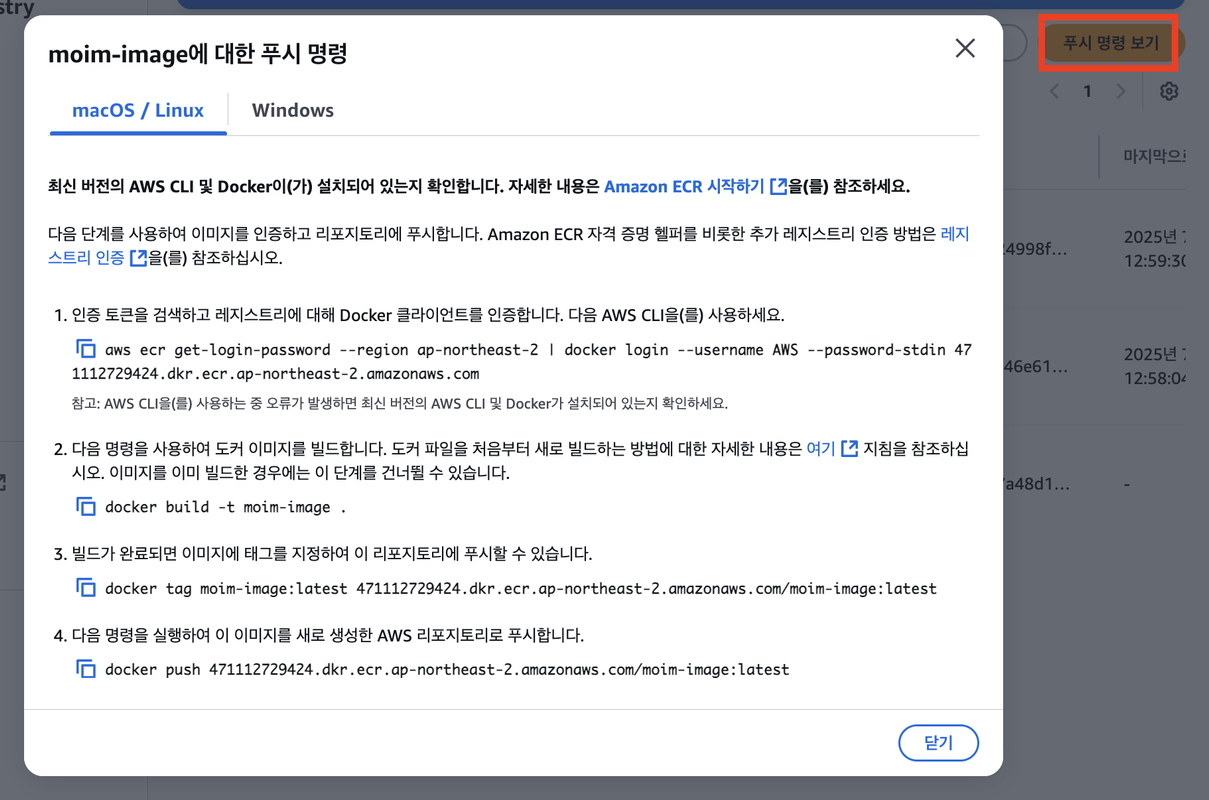
- 이를 눌러서 명령어 보고
- 1️⃣ local bash에 명령어 따라치기
- 2️⃣ EC2접속해서 명령어 따라치기
이렇게 같은 명령을 두 번 실행한다
- create image
✅ EC2가 ECR에 접근할 수 있도록 권한 주기
- use AWS credential helper
- https://github.com/awslabs/amazon-ecr-credential-helper?tab=readme-ov-file#amazon-linux-2023-al2023
1
sudo dnf install -y amazon-ecr-credential-helper
- configure
config.json
1
2
3
4
5
6
7
# create .docker folder
mkdir .docker

cd .docker

# config file
vi config.json
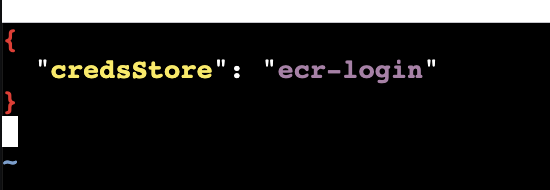
- put this in
config.json
1
2
3
4
5
{
  "credsStore": "ecr-login"
}

~
✅
✅
✅
✅
This post is licensed under CC BY 4.0 by the author.