3.7 OOSS Installation Techniques
✅ 5 ways of installing OS
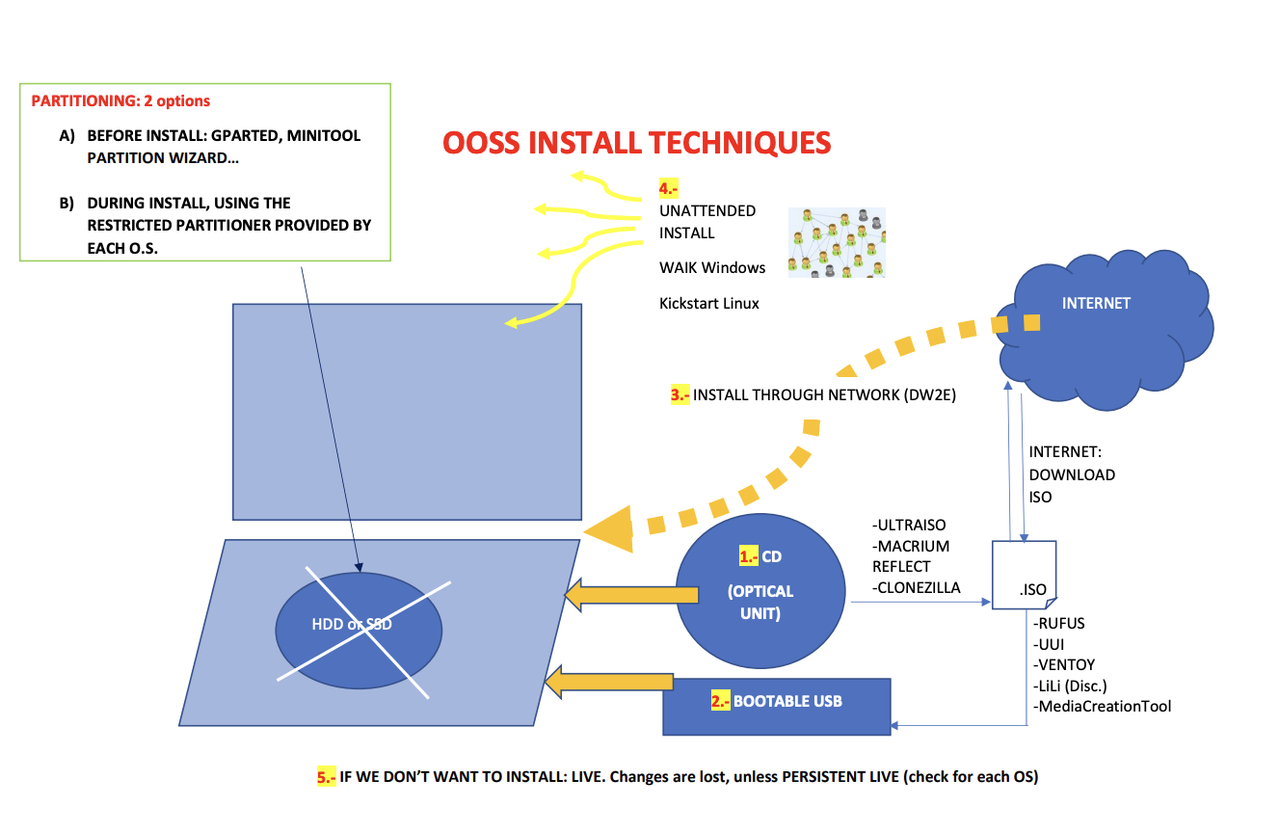
- 1️⃣ Use optical unit
- 2️⃣ Use
.isofiles and Bootable USB - 3️⃣ INSTALL THROUGH NETWORK
- 4️⃣ UNATTENDED INSTALL
- 5️⃣ DON’T INSTALL: USE LIVE
1️⃣ Using optical unit(CD)
✔️ CDs use IDE and HD use SATA
- CD: Optical Unit
- optical unit used to be connected through IDE(not anymore, they are nowadays connected through SATA)
- IDE = PATA(parallel, bits travel in groups, thick wire, used to be fast)
🆚 SATA: serial, thin, L shape
- USBs are serial: and they are fast
- bc the system that throw the bits into the wire are fast
- Optical units normally used IDE, PATA
- Harddisks normally use SATA
✔️ Where to store things in VM
- In virtual machines, there is a virtual harddisk
- this virtual harddisk must be stored in a portion called SATA
so, disk ➡️ SATA
.isofiles are equivalent to the old CDs- So,
.isofiles must be stored in the portion of VM that is called IDE so,
.iso➡️ IDE- ⚠️ If we do not comply, VMs will work
- but they will work disorganized
- and will not be standarized
2️⃣ Use .iso files and Bootable USB
.isoare the same as CDs, but in a form of a file.isoextension comes from the ISO standard organization, bc it means standard
✔️ What does it means to be standard?
- 👀 A4 paper is ISO
- 👀 All tech companies, including FP, should have certificate of standard
ISO14001 - (to be environmental friendly)
- 👀
.isofiles are also standards
✔️ Conversion from CD to .iso
conversion of CD into a
.isofile is done through three programs- ULTRAISO
- MACRIUM REFLECT: when we want to convert a computer into a
.isofile- by this, we can create an image file
- 💡 image file:
.isofile to create identical computers for the whole organization - so all computers can be same
- CLONEZILLA: also create image files and create copies/clones of the computer
- both for distribution and backups
- if you want to reformat the computer, use CLONEZILLA
✔️ To run the .iso file, Bootable USB
- Most times, to execute the
.isofile, - you need to insert the file into the USB
- and the USB becomes a Bootable USB, called bootable USB
- you cannot drag and drop a
.isofile ❌
✔️ How to make Bootable USB, how to put .iso
you need to use a special program for inserting the
.isofile into the USB- RUFUS: has a certain window flavor
- If we make a RUFUS with windows, works perfectly
But if we make a RUFUS with windows, works meh🫤
- UUI: Universal USB Installer
- Created by Linux, so it is universal
can work both in Linux and Windows perfectly
- VENTOY
- you can put, in the same USB, several
.iso you can put several
.isoand choose in the menu- LiLi: Linux Live
- discontinued SW
- no more technical support
- But it was the best for creating live sessions
- an OS in live mode means you can use it without installing it
- 🆚 But not a virtual machine!
Live session is like using a VM in the cloud
- MediaCreationTool: Herramienta de creacion de medios
- tool that Microsoft offers for creating Bootable USB
- so for installing a new windows in a computer
- so if you are trying to install windows, use MediaCreationTool
✔️ How to run .iso
- Once you have the the bootable USB…
- Insert the USB in the computer
- Restart your computer, but enter the BIOS before the OS that you already have starts
- In the BIOS, place the USB in the first position/option of the booting sequence This means,
Do not read your harddisk, read the USB! - Then the computer read read the USB, read the
.isoand install the.iso
3️⃣ INSTALL THROUGH NETWORK
- Install the
.isothrough the network, instead of putting in the USB - 👍🏻 you do not have to be in front of the phyisical computer for installing if you use network
- 👍🏻 do not need USB
4️⃣ UNATTENDED INSTALL
- related to technique 3
also installing using the network
- UNATTENDED INSTALL: you do not have to be in front of the computer
- but, with the
.iso, all the computers will be cloned/identical - all computers will have the same user, same password
✔️ Two ways of doing unattened install
- WAIK Windows: for unattened install on windows
- Kickstart Linux: for unattened install on linux
✔️ If I want to install both, what should I install first?
- if you want a dual system, install both windows and linux install, use both
⚠️ If you predesign the harddisks, installation order does not matter. Install any of linux or windows first, order does not matter
- ⚠️ But if you did not predesign the harddisk, install first windows, then linux
- if you install linux first then windows, windows will eat up, destroys linux
- linux respects windows, but windows does not respect linux
5️⃣ DON’T INSTALL: USE LIVE
- Do not install, but you can use the OS like on the cloud
- If you use LIVE sessions, the changes are not permanenent
- changes disappears from the harddisk
- ⚠️ unless you use persistent LIVE
✔️ Persistent LIVE
- you are not installing anything, but some of the changes are memorized/stay/kept
💡 Next Mode, Predesign the HD/partition
✔️ NEXT MODE
- If we let the
.isowork in NEXT MODE, the new OS will occupy the whole harddisk - in next mode,
.isowill decide how to design the whole harddisk
1
2
3
4
5
6
7
8
9
10
11
12
13
14
15
16
17
18
19
20
21
22
SoHee downloaded the Windows32bit.iso file
then she created a bootable USB using MediaCreationTool
then inserted the USB on the computer
and put BIOS before, put USB before everything...

when the installation process starts, she just clicks on next, next, next...
= next mode

- The windows will divide the harddisk in three partitions
- 1. the first partition will be for booting windows
- 2. another parition for C
- 3. another patition for recovery C(recovering windows)

Now she uses the windows, and saves photos, videos...

If the teacher tells her to change to Windows 64 bits, she can update the OS
but all her data, photos, videos will disappear
- as she did not separate

But, if she had predesigned the partitions/disks
she can changing the OS without losing the information
and she can add more OS, without losing anything
✔️ Predesign the partition, harddisk
- you can order how to partition the harddisk
- you can control
✔️ How to predesign the harddisk
- 1️⃣ G PART ED
- ⭐️ the most imporatant program of this chapter
- G: every application starting with G comes from
GNOME - GNOME: Linux origin, free, universal(not restricted), very complete
- PART: create partition
ED: editable, partitions are modifiable, this means you can create partition and modigy later
used for creating the partitions
- 2️⃣ MINITOOL PARTITION WIZARD
- fast
- but mini, not very customizable, little restricted
- WIZARD: assistant that helps you
- 👍🏻 so the process is very guided, easy
- 👎🏻 but you lack flexibility
✅
✅
✅
1️⃣
2️⃣
3️⃣
4️⃣
- 1️⃣
- 2️⃣
- 3️⃣
- 4️⃣ 👍🏻 👎🏻
1
2
3
⭐️⭐️⭐️ EXAM ⭐️⭐️⭐️
❓
👉🏻