3.10 BIOS Legacy vs. UEFI
BIOS Legacy 🆚 BIOS UEFI
BIOS: Basic Input Output System
- to study the BIOS, we use VM
- bc if we just change the BIOS, we will not be able to show anything
- your computer will be booting
🆚 BIOS Legacy
1️⃣ Does not have a GUI ❌
- no
Graphic User Interface - sometime you need to use the keyboard, you cannot use the mouse
- 👎🏻 not very user frienly
- 👎🏻 sometimes complicated
2️⃣ Stable BIOS
- 👍🏻 But as
Bios Legacyhas a long history, it is well tested, robust
3️⃣ Firmware
Bios Legacyis a firmware- firmware: very basic software very attatched to hardware, already installed on the hardware that boots automatically
4️⃣ EPROM
Bios Legacyis a EPROM: Electronically Programmable Read Only Memory- Electronically Programmable: we print
0and1inside the chip - when you buy, the information is already inside
- so it is not updateable ❌
- Read Only: you can only read from BIOS Legacy
💡 Dual BIOS
- (⭐️ text question)
Bios Legacy: Dual BIOS- Dual BIOS: some computers have two chips, two BIOS
- and in one of them, keeps the factory settings
- In this case, updates could be possible
and you can always format it
- So Dual BIOS is perfect for system professionals
- so they can always try several things,
- and if their computer breaks down,
they can always go back/default
- some DUAL legacy BIOS might have extension for overclocking
- but only if they are dual
🆚 BIOS UEFI
Unified Extensible Firmware Interface
- Unify: global, structure of UEFI is the same world-wide
- Extensible: you can update it
- Firmware
- Interface
1️⃣ UEFI has GUI ⭕️
- has Graphic user interface
- user friendly
- visual controls
- you can use keyboard, mouse…
2️⃣ Downloadable in a USB
- If the chip dies
- you can download the firmware from the internet,
- put it in the USB
- then install it again
- but the USB will always have to be plugged in, so some computers put tape on the USB to stick to the computer
3️⃣ Fast Booting
- (⭐️ text question)
- If you have UEFI
- you can activate fast booting
- Fast booting: switch the computer on, without doing much tests/reviews
- just swtich the computer on, leave the test/review for later
- 👎🏻 some applications do not support fast booting, they cannot start with fast booting
- ➡️ so you might have to deactivate fast booting
4️⃣ Secure Booting
- (⭐️ text question)
- Secure Booting: only certified applications boot
- certified 🟰 signed 🟰 with a copy right
- 👍🏻 improve security
- 👎🏻 not all applications are certified
- for example,
linuxis not certified - ➡️ so if you want a linux, you should deactivate secure booting
5️⃣ UEFI is a Third-Party Extensions
- first-party in a computer/system: user
- second-party in a computer/system: OS
- third-party in a computer: other companies
- so UEFI can have extensions from other companies, different from the manufacture
- 👀
overclocking- artificially increasing the clock speed of your computer
- 👎🏻 risky, imagine your heart running faster!
- you need extra refrigeration, need a better fan
- 👍🏻 it can increase the speed of your computer
- overclocking can be done with UEFI
- by downloading applications from other companies
- used for video games with VR
6️⃣ UEFI is not that robust
- has a shorter history than BIOS Legacy
- so not so much testing has been done
- Legacy has been here for 50 years, whereas UEFI has a history of 14~15 years
✅ Functions of BIOS
- both Legacy and UEFI
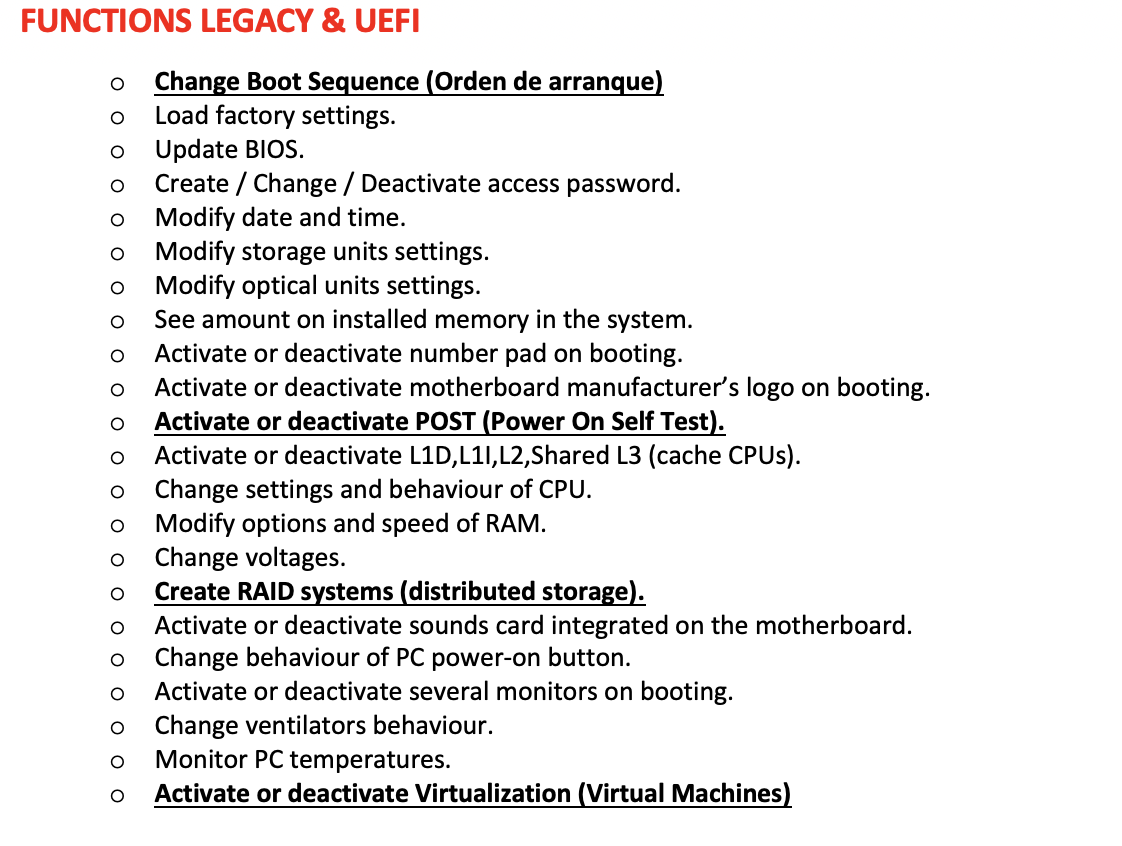
☑️ Four most important functions of the BIOS
1️⃣ Change the Boot sequence of a computer
By default, the order of booting is as following
- (1) Harddisk: the computer looks for the OS in the HD
- (2) Network: the computer can also search for OS through the network
- (3) External memory: the computer looks for OS in the USB
- ☹️ The problem of the default order
- imagine you have
windows 7, but you want to update towindows 10 - you download the
iso fileof thewindows 10 - then you put the
iso fileinside the bootable USB in order put the iso file in the USB, use programs such as
RUFUS,UUI,LiLi,VENTOY,MediaCreationTool- After you introduce the USB
- but if you do not alter the boot sequence,
- your computer will always start with OS in the harddisk, which is
windows 7 - ➡️ you need to enter the BIOS and set the USB as the first OS to boot
- ➡️ place USB before the HD
then the computer will boot the OS in the USB first, so it will boot
windows 10- Then you can choose
- for the USB to override the HD
- or can create a dual booting system
2️⃣ Activate or deactivate the POST
- POST: Power On Self Test
- way of booting a computer making sure that all the componenets are perfect
- go component by component to check if it is ok
- 👎🏻 very slow, as you need to check all the components
3️⃣ Create RAID systems(distributed storage)
- RAID: Redundant Array of Independent Disks
- to have several harddisks interconnected
- one information is split among the HD
- write the information in none of the HD at the same time
- information is mixed among the several disks
4️⃣ Activate or deactivate Virtualization(Virtual Machine)
- If you can work with VMs or not
- some BIOSs bring the VM deactivated
- then VMs will not work
- you need to activate the VM
✅ How to know if I have Legecy or UEFI?
Win+R > MSINFO32 > Modo BIOS
- modo de bios:
- you can also see the
brandand thedateof the BIOS - with this you can check the bday of the computer
- MSINFO32 was also used to see 32/64
✅ How do you enter your BIOS?
1️⃣ How to enter BIOS 1
- when the computer is OFF
- switch the computer on
then press
Esc,Supr,F1,F2,F10,F12- ❓ why so many options: depends on the brand of the BIOS
- need to press the keys super fast, many many times
- before the active OS appears
if the windows(active OS) start appearing, you are too late
- In laptops, if the key for entering your BIOS is
F1, F2, F10, F12 - then you need to press it with the
Fnkey
2️⃣ How to enter BIOS 2
- when you cannot switch your computer off
- when you are inside windows 10/11
- ⚠️ this technique is only valid if you have a UEFI
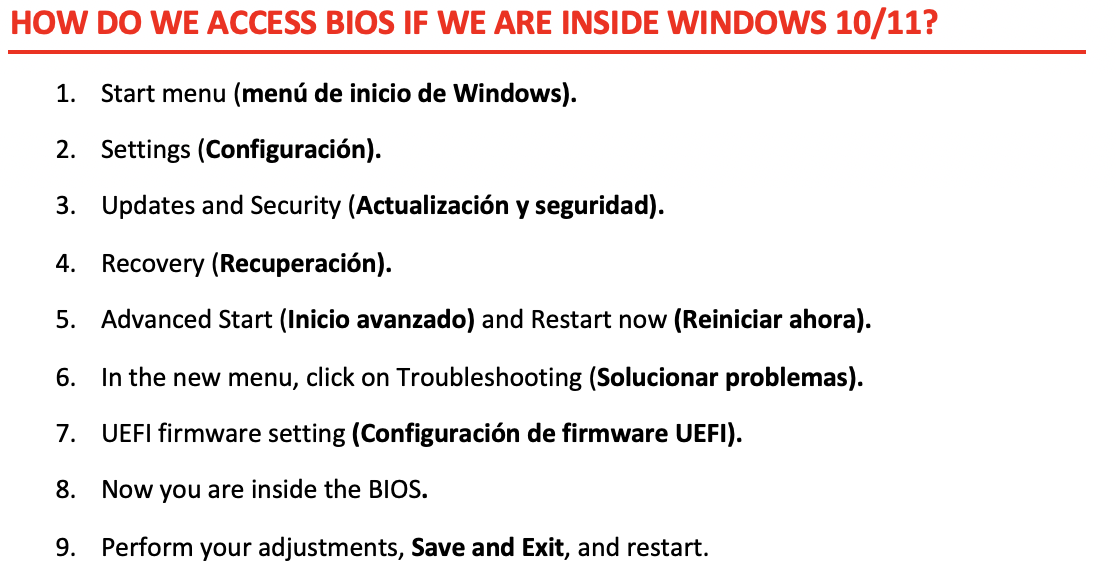
3️⃣ What happens if we cannot access the BIOS?
- Why I cannot access the BIOS?
- (1) bc you have fast start activated
- you do not have time to press the keys
- 💊 deactivate the fast boot
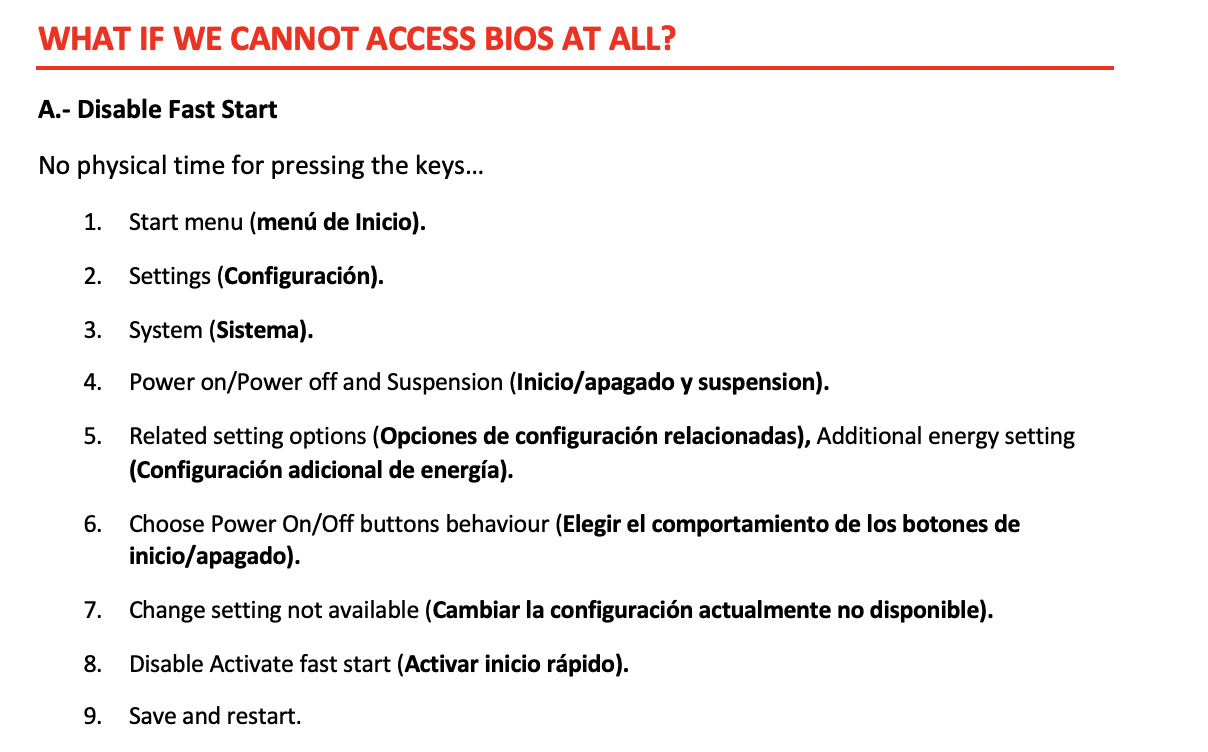
- Why I cannot access the BIOS?
- (2) Sometimes your BIOS needs an emergency USB
- bc the BIOS is corrupted
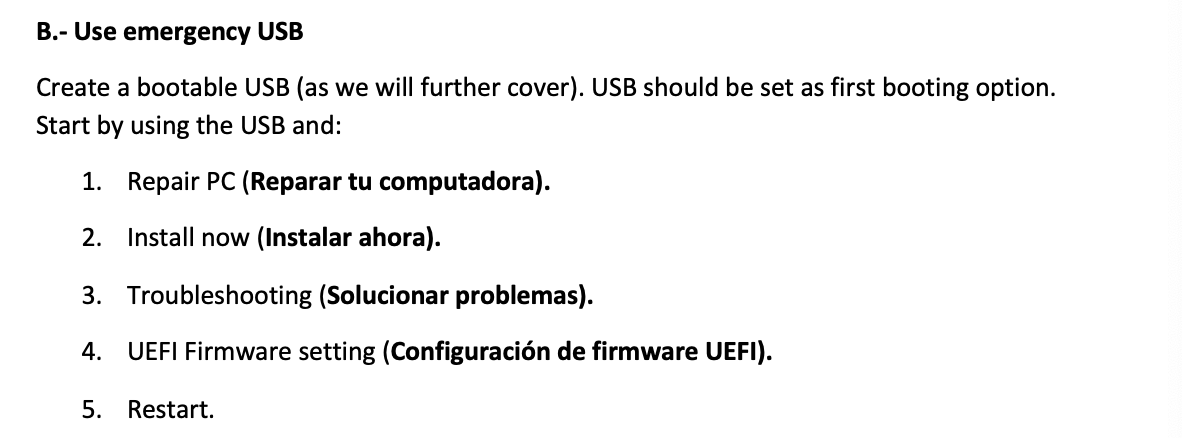
4️⃣
- 1️⃣
- 2️⃣
- 3️⃣
- 4️⃣ 👍🏻 👎🏻
1
2
3
⭐️⭐️⭐️ EXAM ⭐️⭐️⭐️
❓
👉🏻
This post is licensed under CC BY 4.0 by the author.